Quick synchronization of contacts with a mobile device will save you from entering each phone number one by one and will help you bypass many restrictions on adding contacts to instant messengers.
- You can set up synchronization with a mobile device based on ios or android.
Set up CardDAV sync
- Go to the Bitrix24 portal, open the “My Page” page and select the “Security” item.
- Select “Synchronization” and specify contacts for further synchronization.
- System users are contacts of colleagues from your company’s divisions.
- Extranet users are invited external users from Extranet groups.
- CRM contacts – you can choose which contacts from CRM to synchronize – Own or All, as well as their number.
- CRM companies – you can choose which companies from CRM to synchronize – Own or All, as well as their number.
- Check the boxes for CardDAV sync contacts and navigate to your mobile device.
Synchronization on ios
- Go to device settings and select “Contacts”.
- Go to “Accounts”.
- Under iCloud, select Accounts.
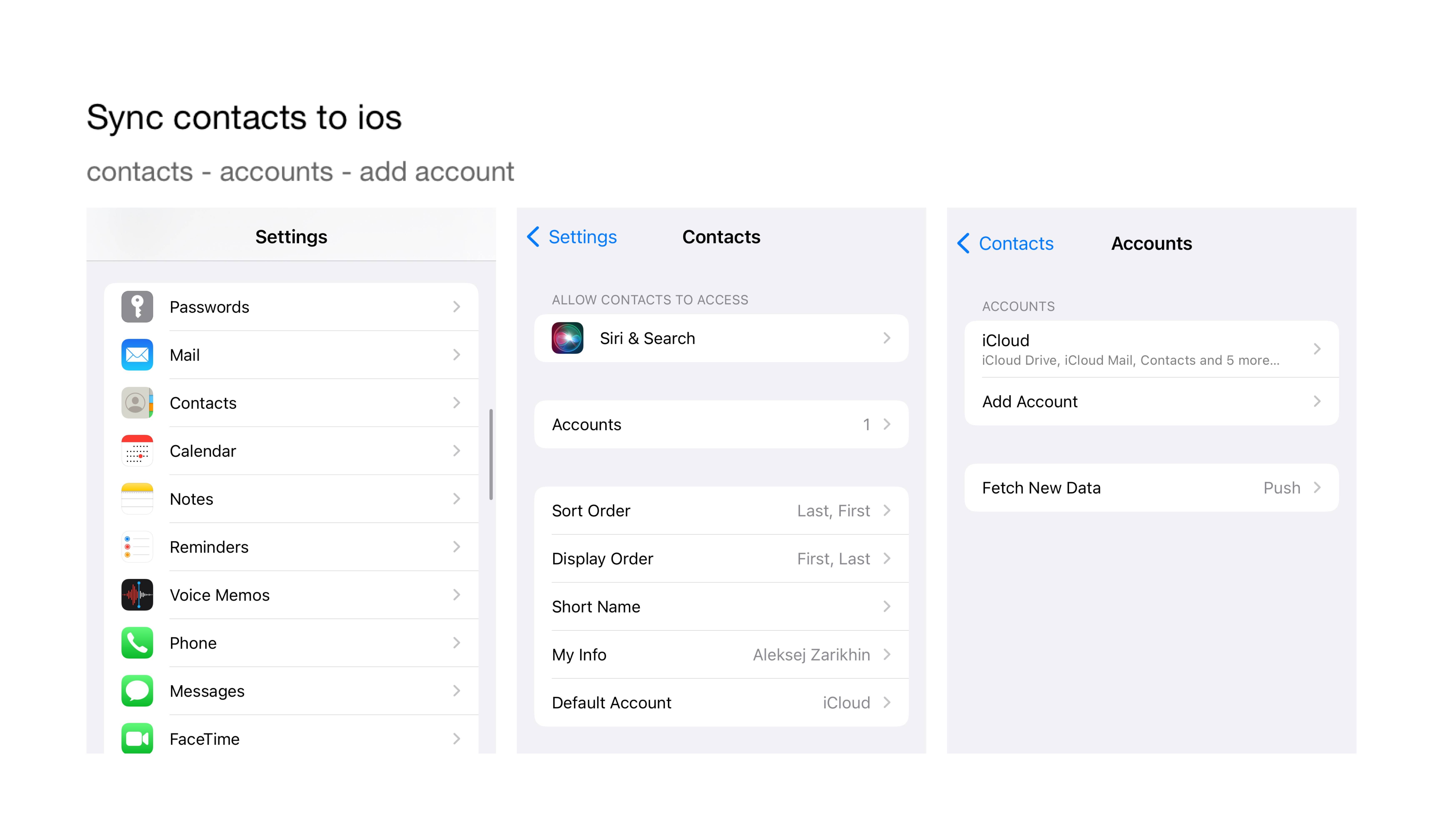
- Select the “Other” account type.
- In the Contacts field, select CardDAV Account.
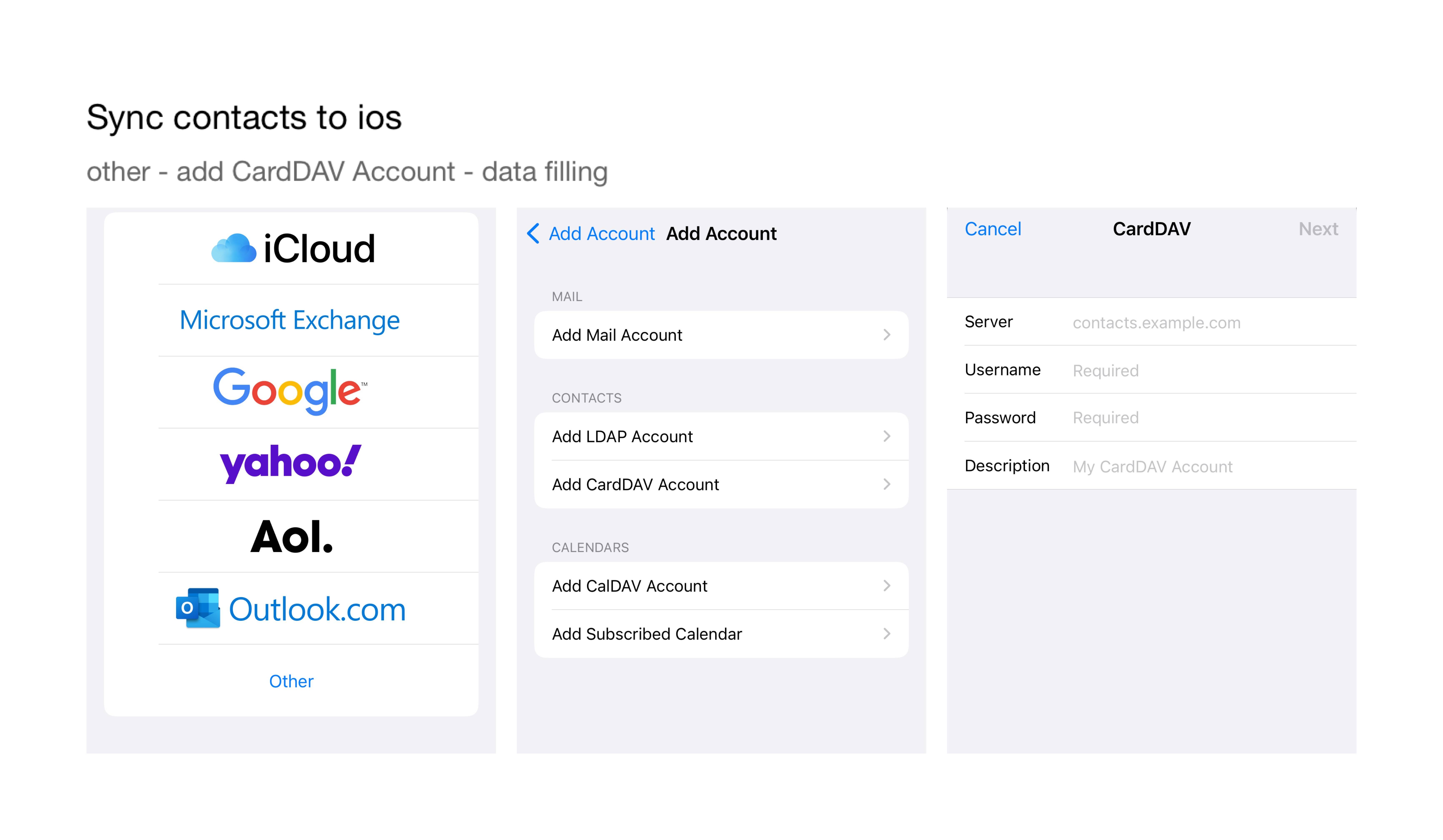
- Add the Server address – this is the address of your Bitrix24 workspace. Enter the registration data of your Bitrix24 account in the “User” and “Password” fields. You can add a description to an account, but it’s not required.
- Click on the “Next” button.
- After that, all your Bitrix24 contacts will appear in the Contacts application of your mobile device.
Synchronization on Android
- On an android mobile device, you can sync contacts with CardDAV.
- Download the CardDAV-Synce free application to your mobile device. You can download the application here.
- Open the app and select Add Account.
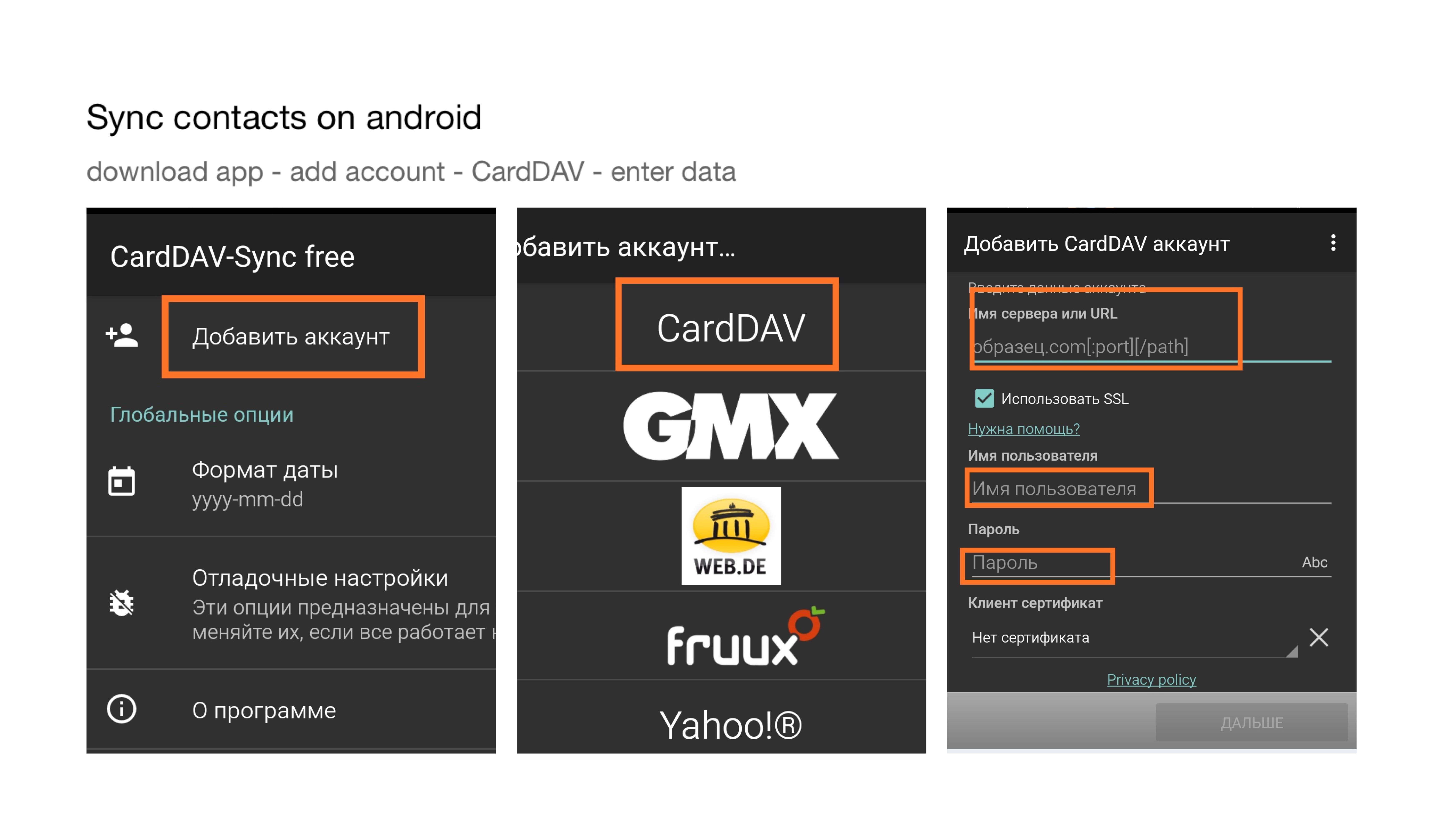
- Then select “CardDAV”.
- Specify the address of your Bitrix24 workspace, as well as the registration data “Username” and “Password”.
- Click on the “Next” button.
- All Bitrix24 contacts will be transferred to the Contacts application on your mobile device.
