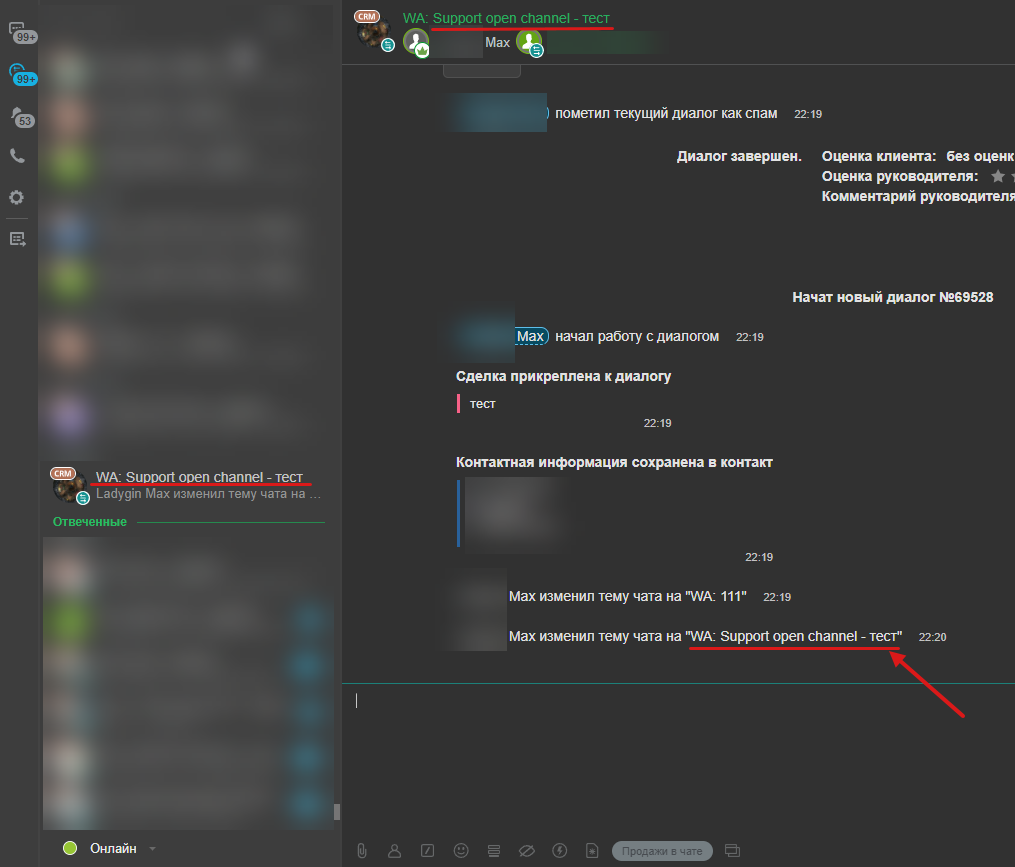
The Open Line Chat Renaming Robot will allow you to display all important information in a prominent place and highlight the dialogue at the right time.
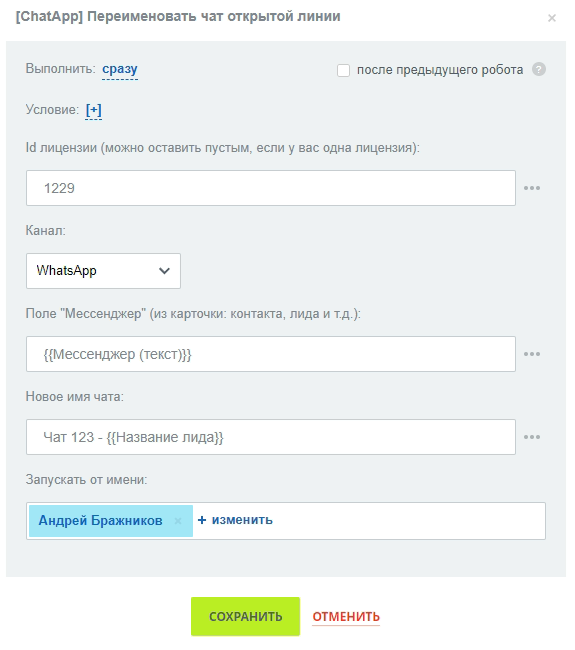
- Go to the Robots tab and add a new Robot [ChatApp] Rename open line chat.
- Fill in the Robot fields:
- license id – if you have only one valid license, then this field can be left blank;
- Channel – select a channel for the Chat Rename Robot to work with;
- Field “Messenger” – the Robot takes a chat from the Lead card, contact, etc.;
- New chat name – enter a new name for the Open line chat.
- Click on the “Save” button.
- After the start of the renaming process, the Open Line chat will temporarily switch to the Bitrix24 workspace Administrator.
- When changing the name of the chat, the standard prefixes are preserved: WA; T etc.
- After the name is changed, the Open Line chat reverts to the original responsible manager.
- If there were several additional managers in the chat, then after Renaming the chat, only the responsible manager– the owner of the chat – will remain.
Chat renaming example
For example, let’s consider an automation of the Chat Rename Robot, in which the chat is renamed along with the insertion of the Client’s name.
- Add a new robot and fill in all required fields.
- Fill in the “New Chat Name” field, then put a hyphen (–) and enter {{contact:Name}}.
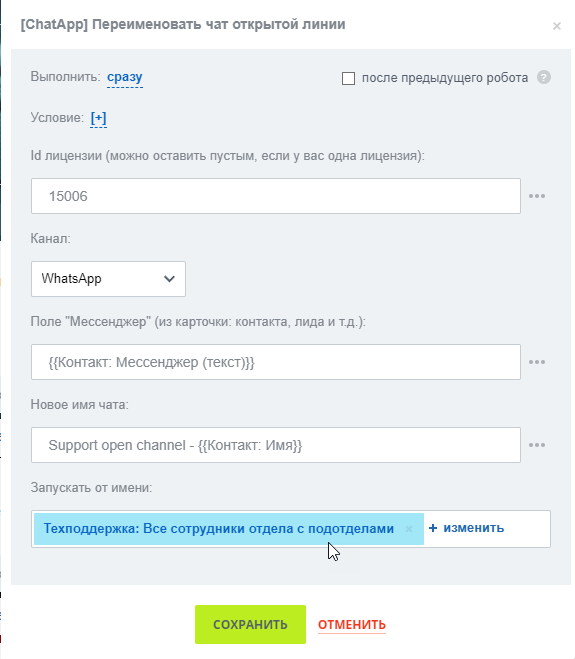
- With this setting, Chat will be renamed and Customer Name will be loaded from Contact Card.