The automation rule is designed to automatically send files to clients in a WhatsApp group.
For an example of sending a message with a document, see the section “Sending a CRM document“.
An example create a group.
Suppose you want a robot to automatically send an instruction file to a group chat after going to a certain stage. The instruction is stored on the Bitrix24 disk in PDF format.
To send a file:
1. Add the [ChatApp] WhatsApp Create group automation rule for a deal. Use the standard procedure for setting up ChatApp automation rules.
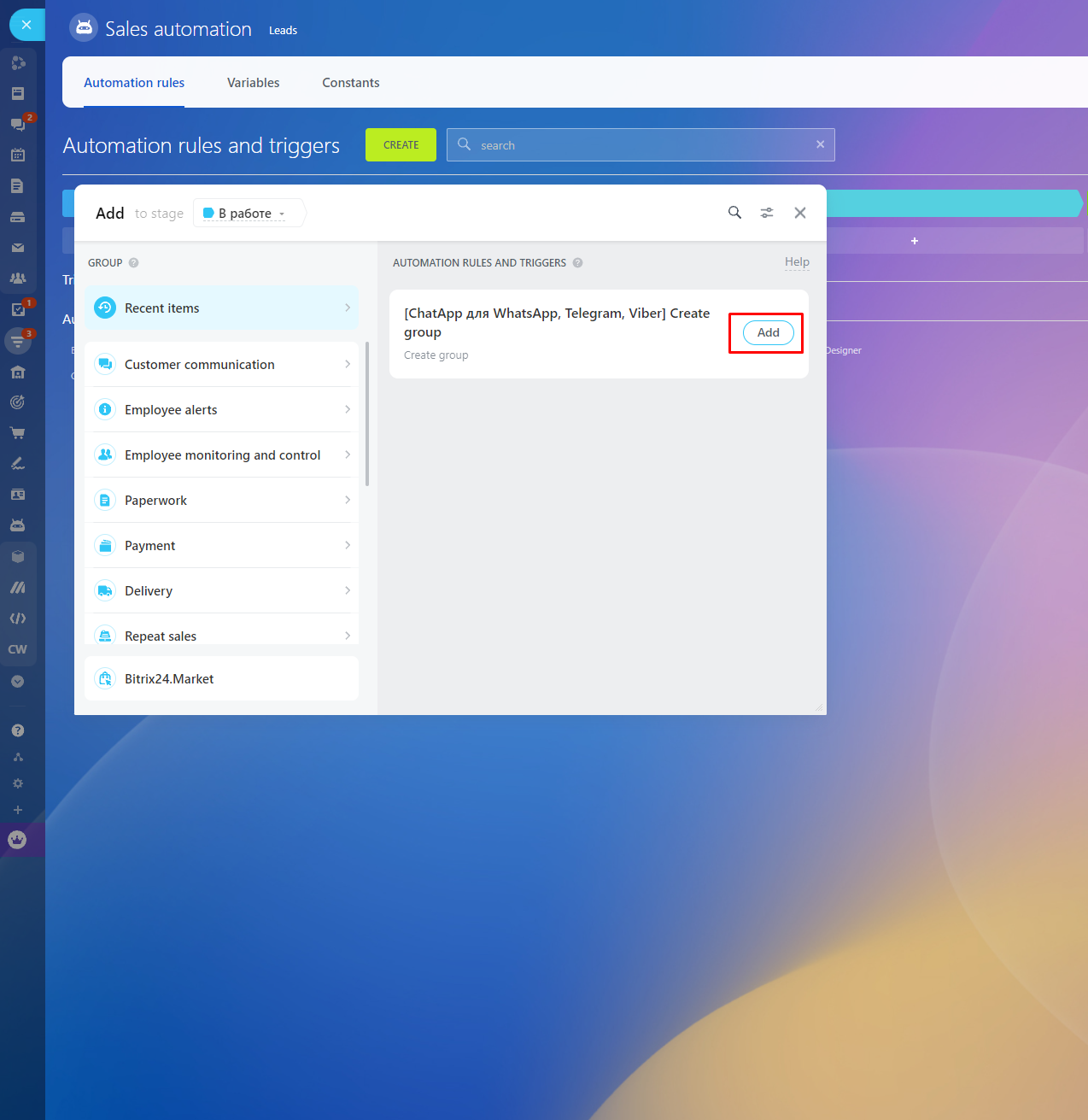
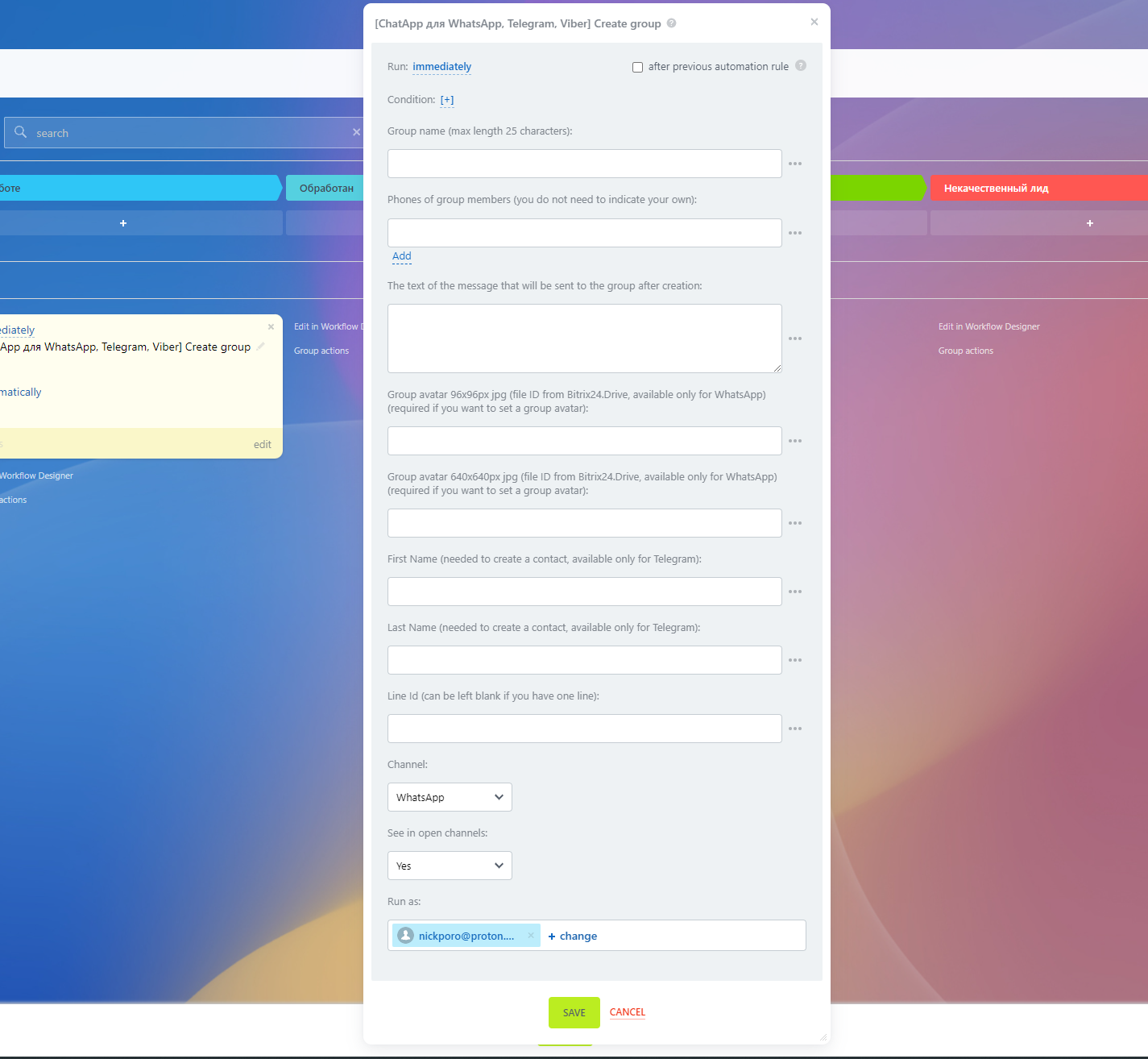
2. Fill in the parameters as shown in the figure in the table below and save the automation rule.
- Group name – add a name for the group to be created
- Phone numbers of group members – specify phone numbers of users to be added to the group chat (you don’t need to specify your own number).
- Message text – the message that the robot will send to the group after its creation.
- Avatar for the group 96x96px – specify the id of the file from the drive.
- Avatar for the group 640x640px – specify the id of the file from the drive.
- Line ID – specify the ChatApp account ID. If the field is left blank, the system will send the message from the account that is first in the list in the ChatApp settings.
- Select the channel to send the message and the send display.
- Reflect in Open Channels – Messages sent by the robot will appear in Open Lines chats. If the option is off, messages will only appear in the contact, lead or deal card – in the comments area.
- Run as – specify an employee who has access to contacts, leads or deals.
3. To receive a notification after creating a group, set up another automation rule. This will help you know if an error occurred while creating.
