Robot [ChatApp] – Send message allows you to send a message to the client’s messenger at a certain stage of the transaction.
For example, after a preliminary conversation, you want the client to be able to learn more about your service, website, and social networks. To do this, just compose a message, select a channel and set up automatic sending to a phone number.
Adding and configuring a message sending robot
- Go to the Bitrix24 platform and add a new robot to the selected stage of the transaction.
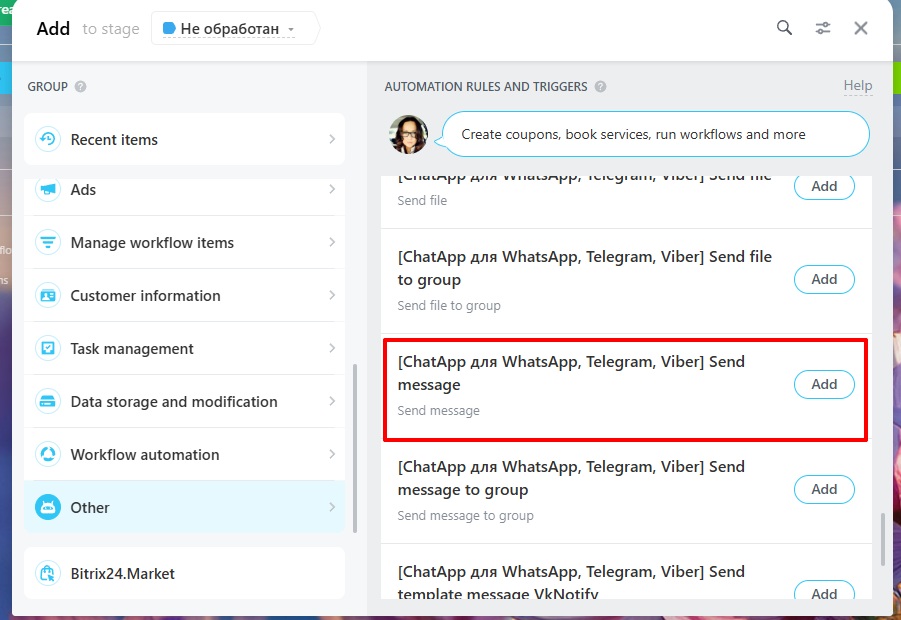
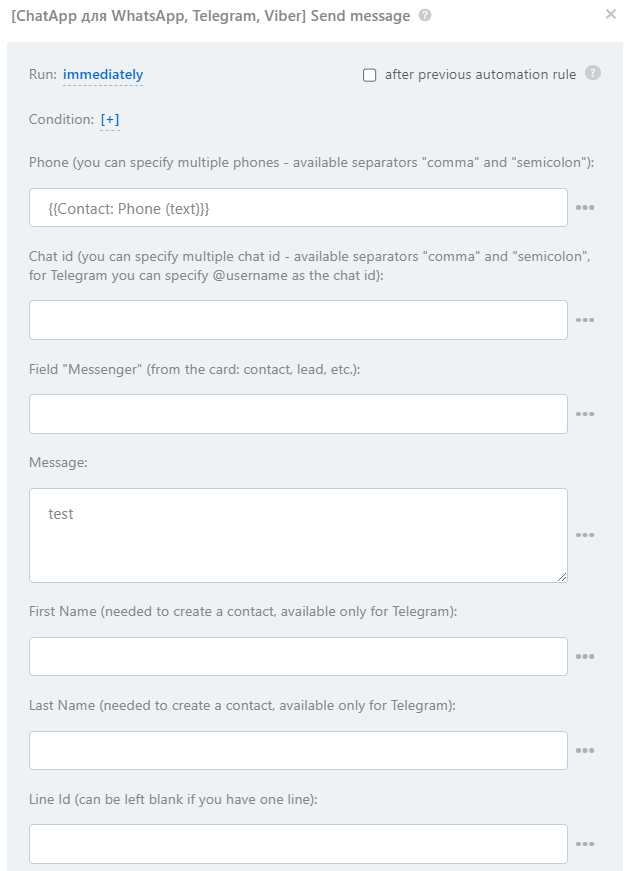
2. Select robot [ChatApp] – Send message and fill in the settings fields:
- Phone — specify one or more phone numbers for sending a message (when specifying several numbers, be sure to use the delimiters “comma” or “semicolon”). Messages will be sent to all the numbers you specified in the robot.
- Chat ID — specify the chat id from the web chat ChatApp WEB or @username of the Telegram user if the phone number is not available.
- Messenger — specify the messenger from the deal or lead card using the field mask. This field is required when the contact’s phone number or other details are not available.
- Message — enter a message to send.
- Name and Surname — these data will be filled in only for the Telegram messenger. Contacts are filled in the messenger directory and displayed in dialogs.
- Line ID — fill in the ID of the license you will use to send the message. You can leave this field blank if you only have one active license.
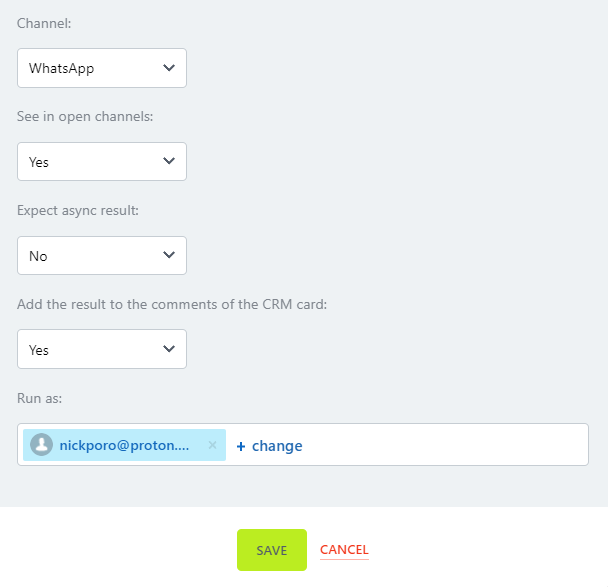
- Select the channel to send the message, the display of the send and the responsible person, and then save the robot settings by clicking on the “Save” button.
- Asynchronous result — allows to get exact data about message sending. Read more in the article.
- Add result to CRM card comments — Display message sending status.
Robot Results
The robot “[ChatApp] – Send Message” can return several results:
- Sending status — result Y for success and N for error.
- Detailed result —
chatId:Y|N:[errorCode] errorMessage, where: chatId – chat ID, Y|N – success or error, errorCode – error code, errorMessage – error description.
Operation timeout —
1 – the robot received a response from the integration within the specified time,
0 – the robot did not receive a response.
