Scenario AI Assistant
In this article we will cover:
— setting up and training the AI assistant;
— purchasing and using ChatCoins;
— how to work with the assistant in dialogs.
The Scenario AI Assistant is an intelligent helper that assists operators in quickly and accurately composing replies to customers. The assistant analyzes the conversation, understands the dialog context, and uses the knowledge base it was trained on to generate a meaningful response.
Training the Scenario AI Assistant
To train the AI assistant, go to Chatbots → Scenario AI Knowledge Base.
The assistant can be trained using one of the following methods:
This method is suitable if your knowledge base is stored in documents.
Supported formats: .txt; .docx; .pdf.
Limitations: the maximum size of one file is 80,000 characters; up to 10 files can be uploaded.
Step 1. Select the training method “Files.”
Step 2. Upload files containing your knowledge base.
Step 3. Click the “Start” button.
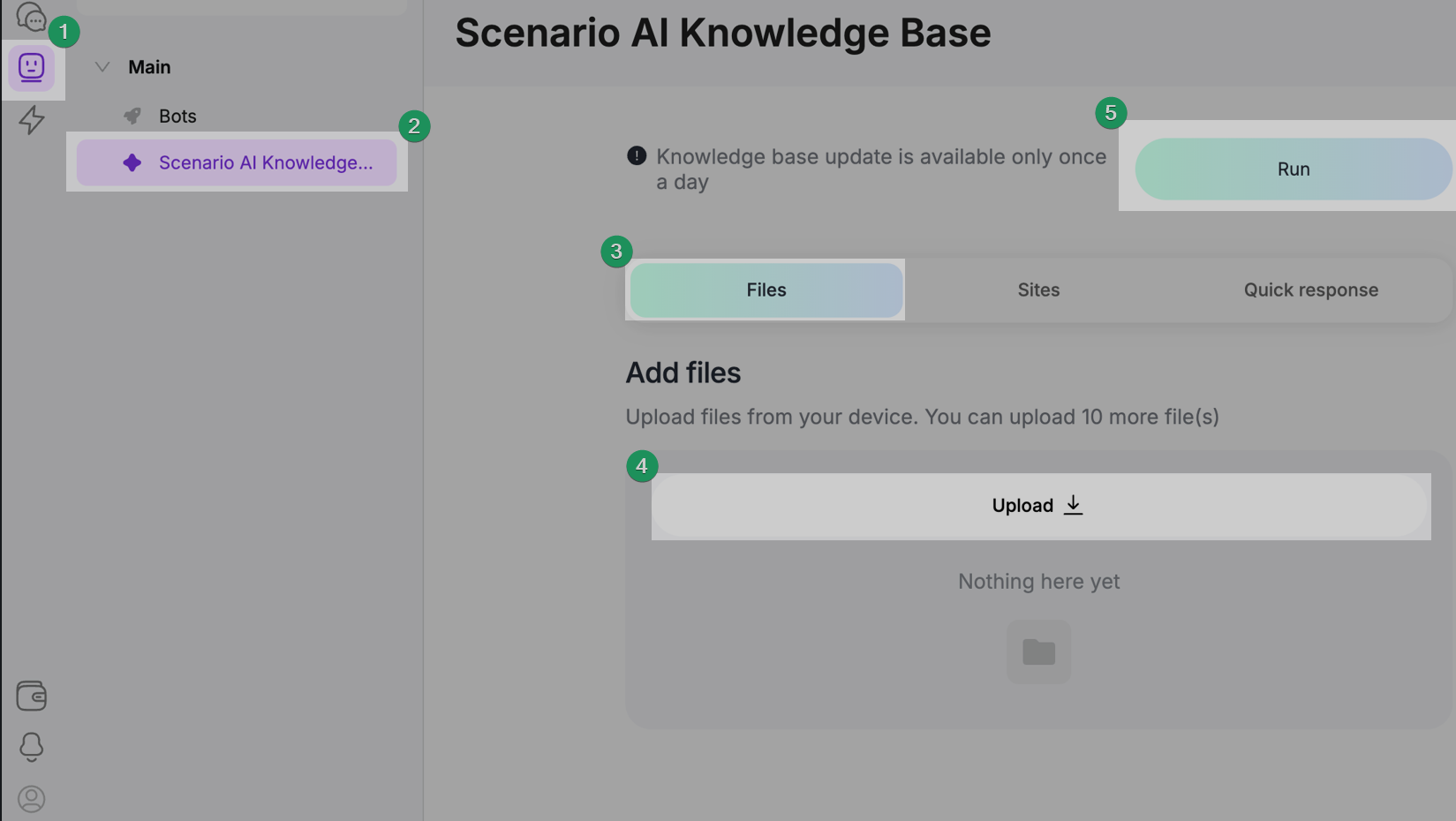
To delete a file, hover over the file and click the trash icon.
This method is suitable if the knowledge base is located on the company’s website.
Step 1. Select the training method “Website.”
Step 2. Specify the website URL.
Step 3. Using the checkbox to the right of the URL field, select the sections of the website that should be used for training.
Step 4. Click the “Start” button. The system will analyze up to the first 500 pages of the website.
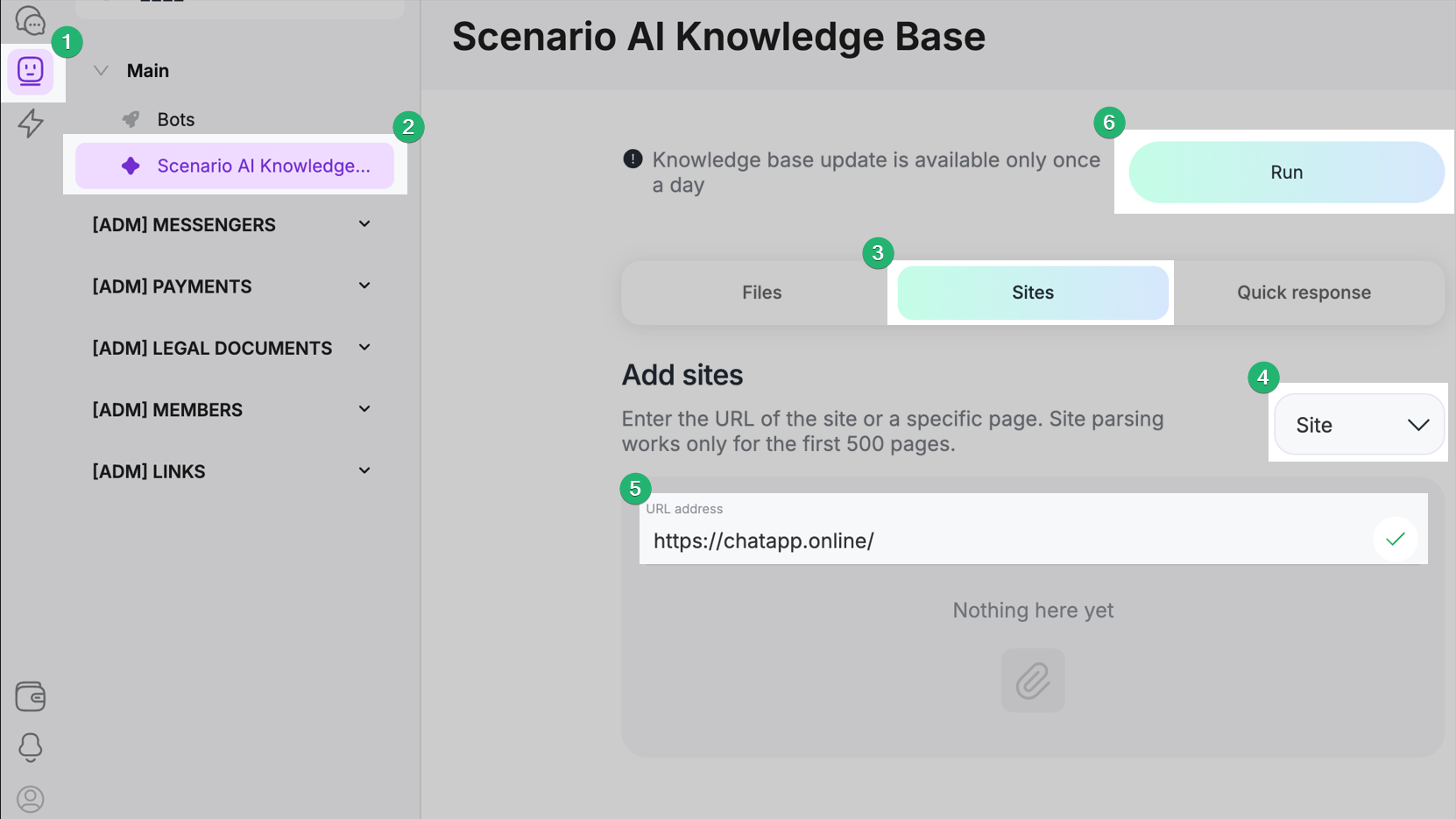
After the training is completed, the following information will be displayed: the number of processed pages and the list of pages that could not be processed (if any).
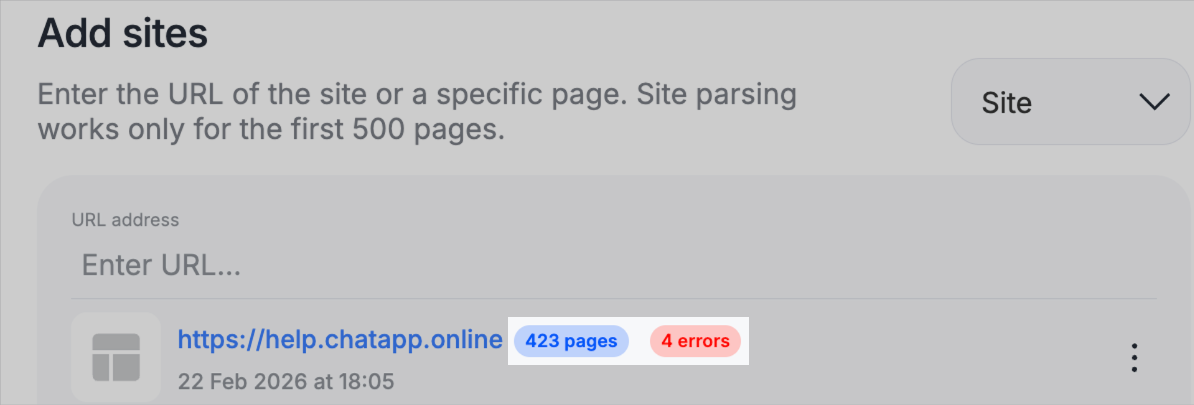
Using the three-dot menu, you can view training details, update data, or delete individual pages or the entire training material.
Training based on a specific URL page
If you need to train the assistant using a specific website page:
Step 1. Select the training method “Website.”
Step 2. Select “Page” in the field.
Step 3. Specify the URL of the required page.
Step 4. Click the “Start” button.
This method allows you to train the assistant using already created quick replies.
Step 1. Select the training method “Quick replies.”
Step 2. Enable the toggle.
Step 3. Click the “Start” button.
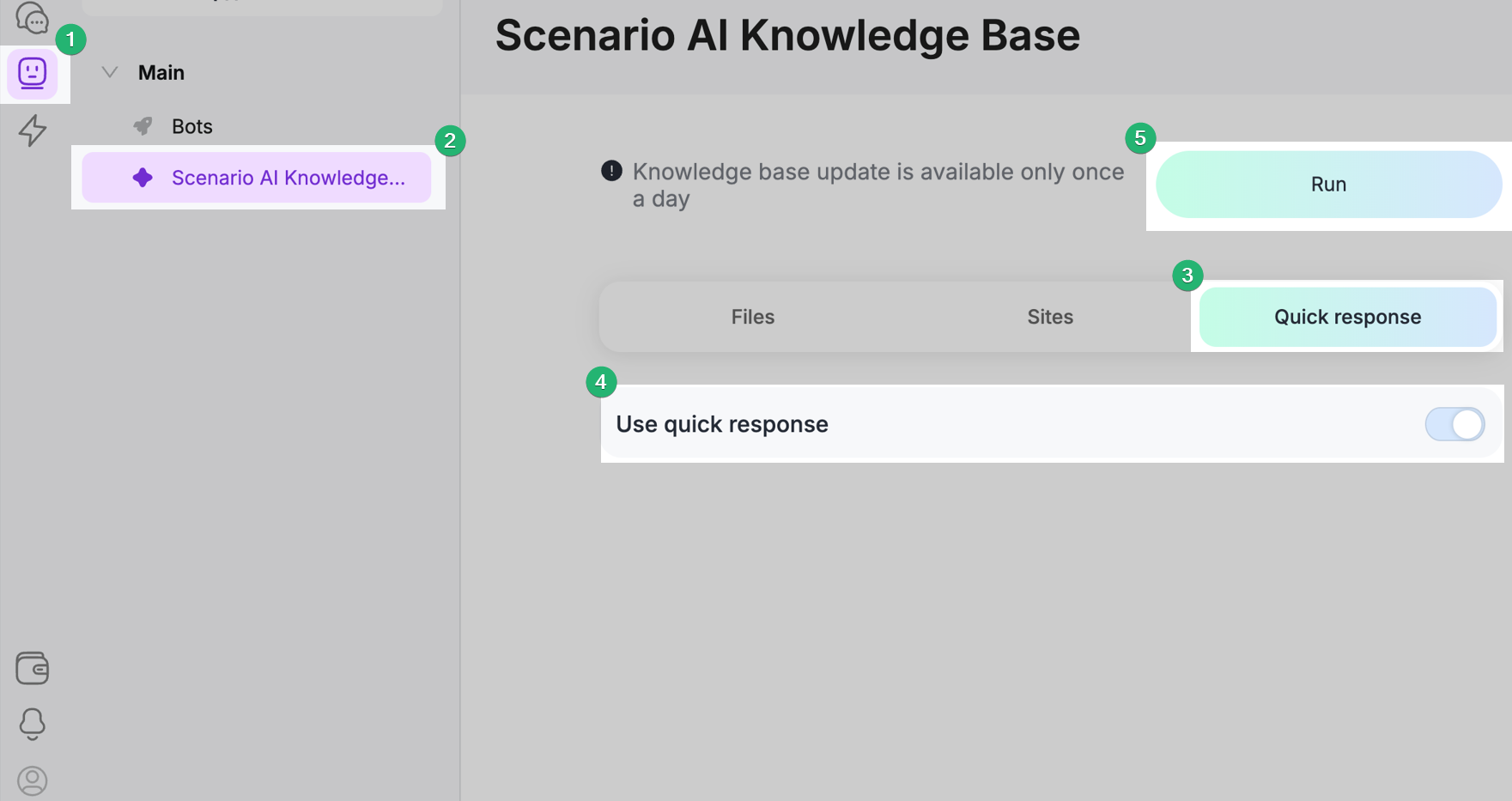
If you have not used Quick Replies before, we recommend reviewing the instructions.
The assistant can be trained no more than once per day. A timer indicating when the training can be started again is displayed under the “Start” button.
ChatCoins: what they are and how they are used
ChatCoins are an internal unit of ChatApp used when working with the Scenario AI Assistant.
ChatCoins are deducted when the assistant performs an action in the chat — generating a reply to a customer, changing the tone of the text to friendly/formal, or summarizing the dialog.
Scenario AI Assistant pricing
A certain number of ChatCoins is deducted for each AI assistant action.
The deduction occurs at the moment the selected action is performed.
| Scenario AI Assistant action | ChatCoins deduction |
|---|---|
| Generating a response to a customer question | 1 ChatCoin |
| Rephrasing text (friendly or formal style) | 1 ChatCoin |
| Making a response more concise or more detailed | 1 ChatCoin |
| Correcting spelling and grammar mistakes | 1 ChatCoin |
| Summarizing a dialog | 2 ChatCoins |
Step 1. Open the “Purchase packages” section and click on the plan with ChatCoins → Buy ChatCoins
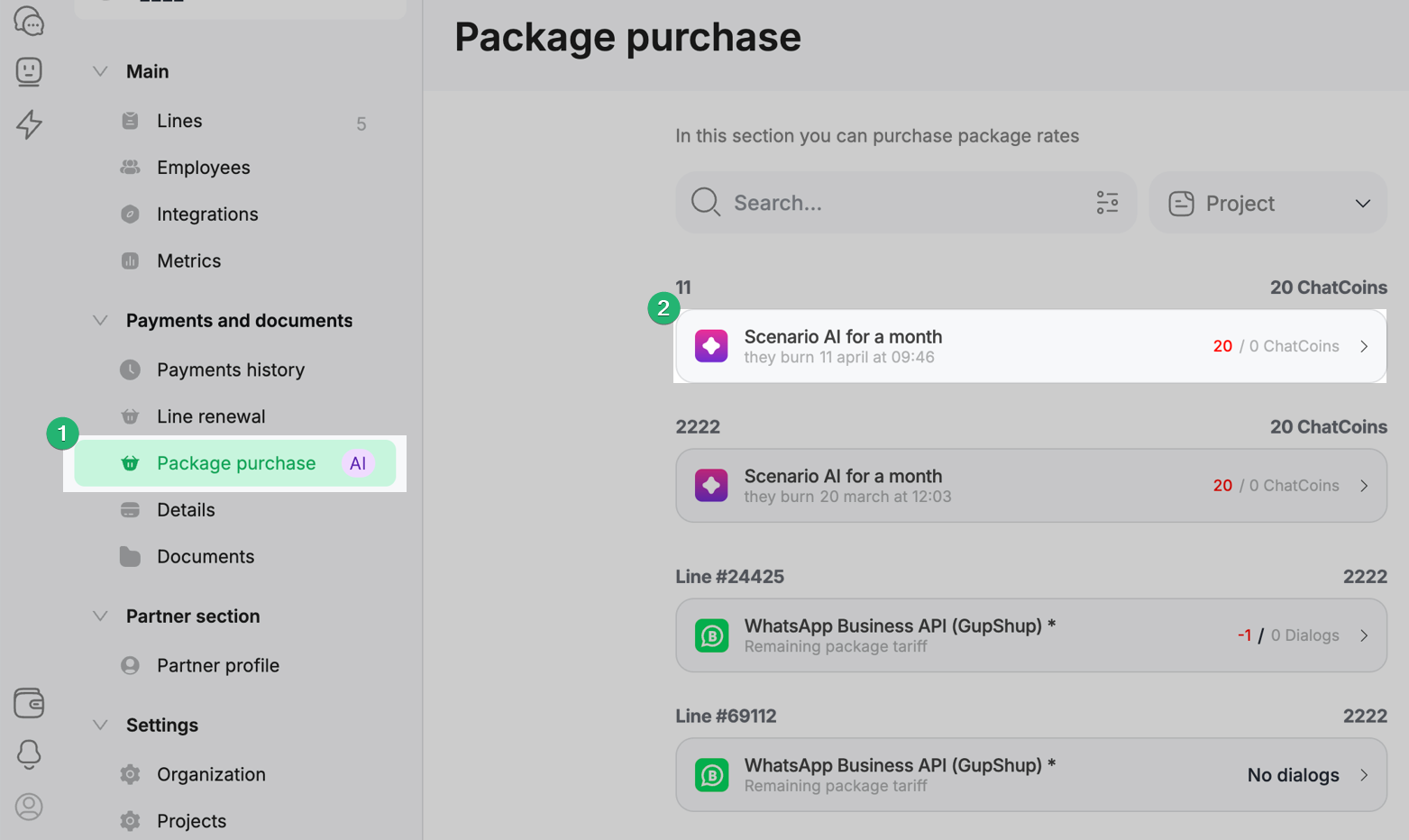
Step 2. In the ChatCoins field, specify the number of packages.
One package contains 500 ChatCoins. In one purchase, you can buy from 1 to 5,000 packages.
Step 3. Select the project for which the ChatCoins are purchased.
If there are several projects, click “Add more” and specify the number of packages for each.
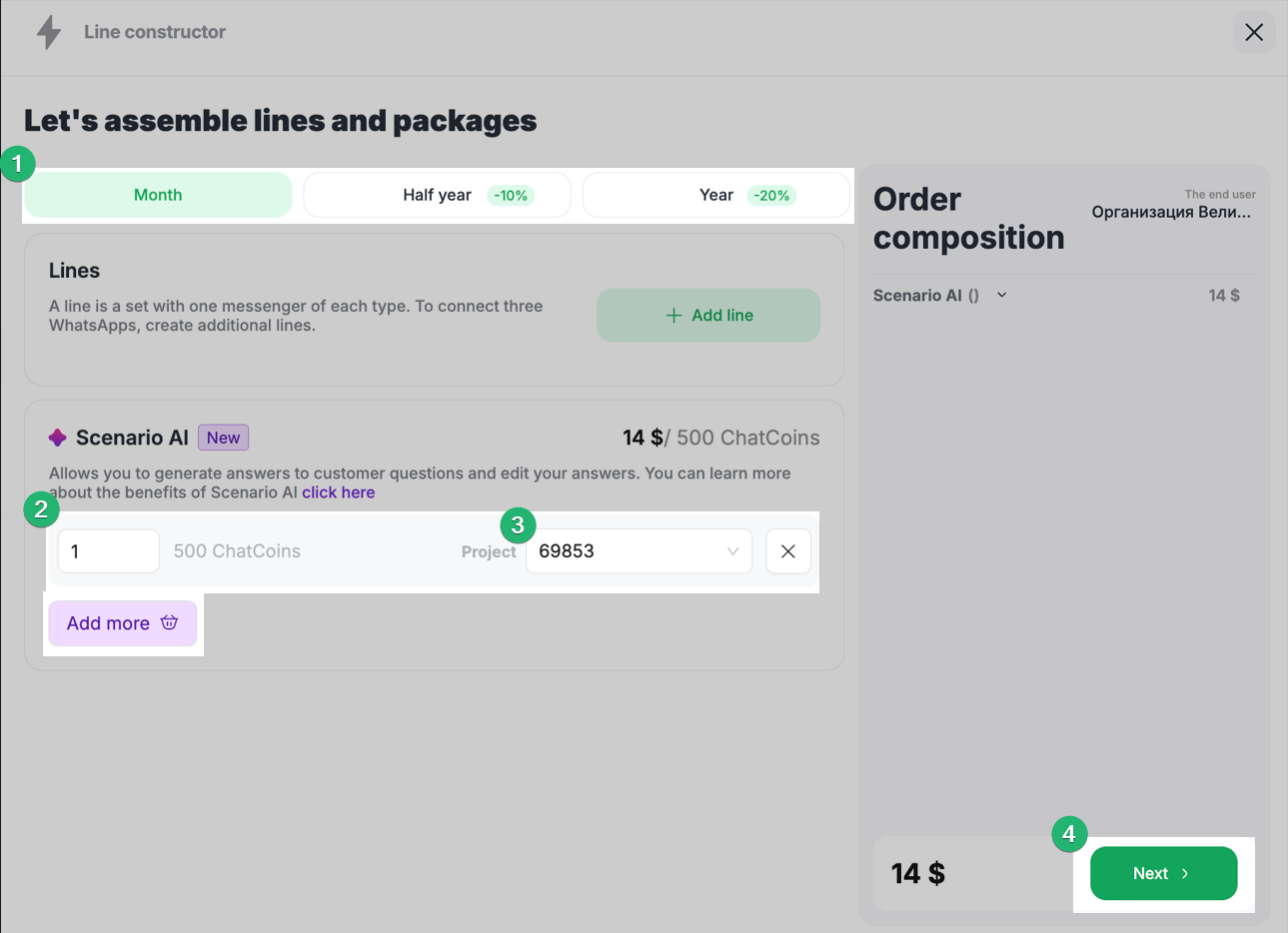
Step 4. Select the validity period of ChatCoins — 1, 6, or 12 months, click “Next”, and choose a payment method.
Auto payment does not apply to the purchase of ChatCoins.
Each month, 20 ChatCoins are credited to every project — this is a bonus from ChatApp 🎁
Unused ChatCoins are not carried over to the next month.
When purchasing a package for 6 or 12 months, ChatCoins are credited every month to the selected project. The number of credited ChatCoins depends on the number of packages: 1 package = 500 ChatCoins. The first accrual occurs on the day of purchase. After that, ChatCoins are credited on the same date each month until the selected period ends.
If ChatCoins run out before the next accrual date, you can additionally purchase a 1-month ChatCoins package. At the same time, the main monthly accrual continues unchanged.
Example: Alexey purchased 1 package for 12 months. This means he receives 500 ChatCoins every month. On the day of purchase, Alexey received 500 ChatCoins. One month later, on the same date, he will receive another 500 ChatCoins. This will continue every month until the package expires.
If ChatCoins run out before the accrual date, Alexey can additionally purchase a 1-month package. At the same time, on the date of the next monthly accrual, he will again receive 500 ChatCoins.
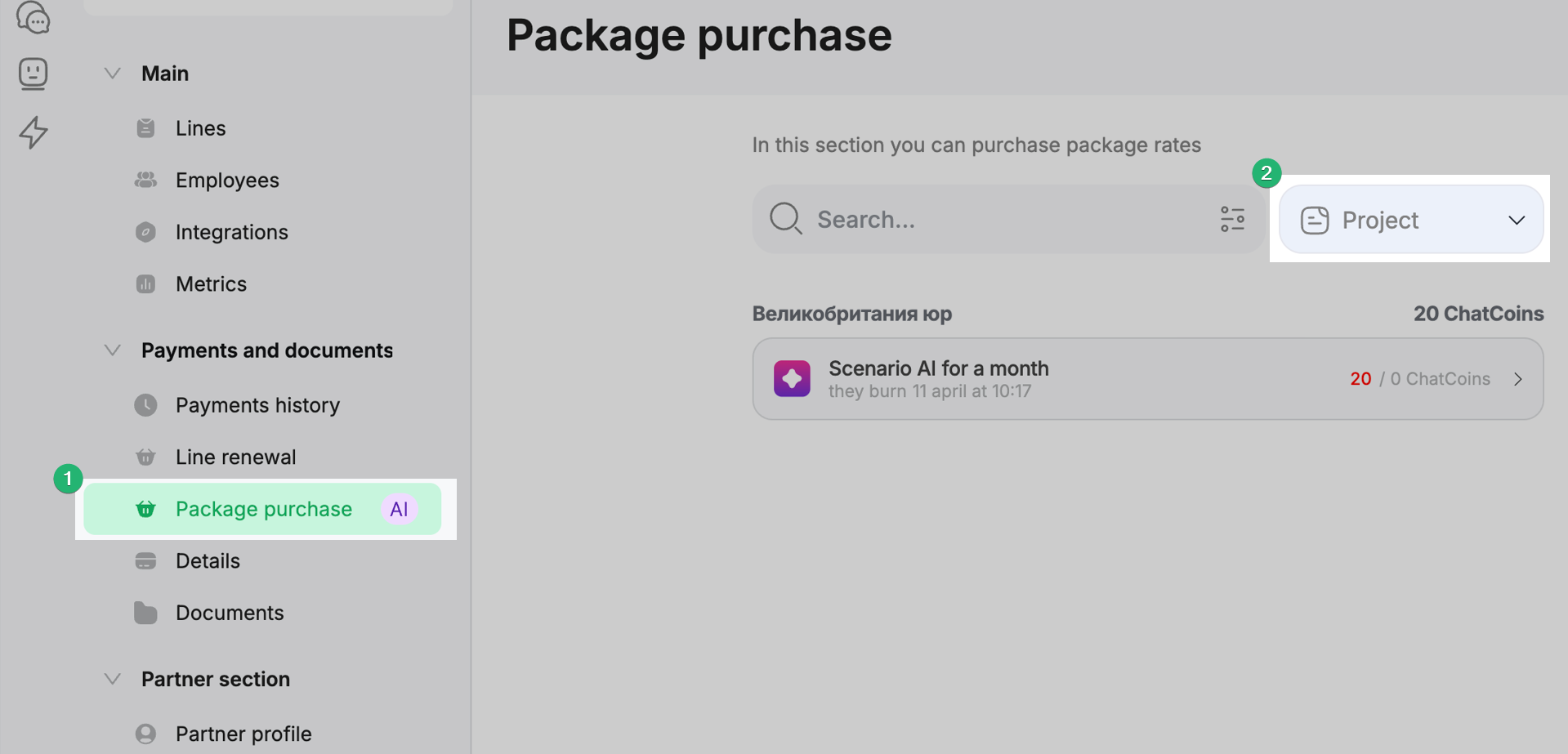
The purchase history of ChatCoins packages is available in the section “Payments and documents” → “Purchase packages.” In this section, you can filter payments by project and view:
— the package validity period;
— the next ChatCoins accrual date;
— the expiration date.
When opening a specific payment, the remaining ChatCoins balance for the selected project is displayed.
Using the Scenario AI Assistant in dialogs
Open Scenario Dialogs and go to the chat with the customer. In the message input field, the Scenario AI Assistant buttons are displayed — they allow you to work with text and generate replies.

AI Button — this button allows you to modify the text entered in the message input field: rephrase it, choose a more friendly or formal style, make the response more concise or, наоборот, more detailed, or summarize the dialog.
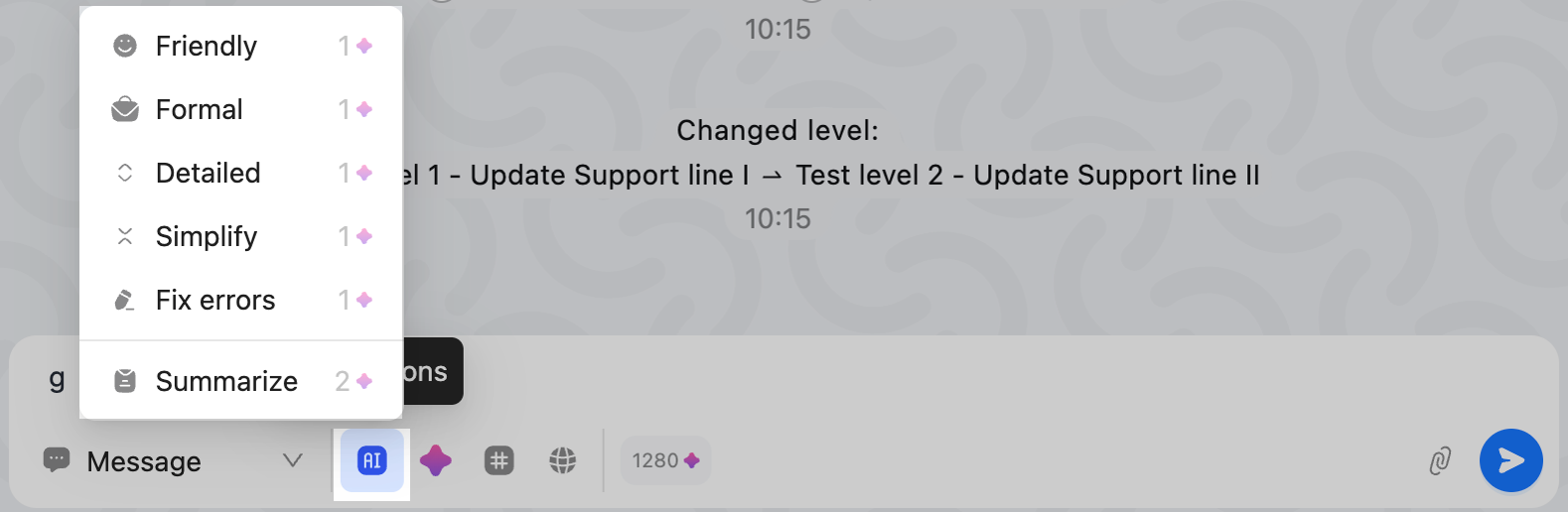
After the action is performed, the assistant shows the original text and the version suggested by the assistant. You can compare them and, if necessary, edit the text before sending it to the customer.
Star button — this button is used to generate a response to the customer. The assistant analyzes the customer’s question and the context of the dialog, after which it forms a ready response based on the knowledge base. The generated text is automatically inserted into the message input field and can be edited before sending.

Star button with a number — the number next to the icon shows the current remaining ChatCoins balance for the project.

