


Виджет 2.0 на сайт
В ChatAppпредусмотрены два инструмента для сбора UTM-меток.
• Виджет — отображается на сайте в виде кнопки с выбором доступных каналов связи.
• Сборщик UTM-меток — собирает UTM-метки при переходе по кнопкам или ссылкам на сайте.
| Виджет | Сборщик UTM-меток | |
|---|---|---|
| Назначение | Готовый виджет с несколькими каналами связи. | Сбор UTM-меток через существующие кнопки или ссылки сайта. |
| Когда использовать | Нужно предоставить пользователю выбор канала связи. | Нужно сохранить текущие кнопки / ссылки сайта и добавить сбор UTM-меток. |
| Количество каналов | Несколько каналов в одном виджете. | Один канал в одном сборщике. Для каждого канала создается отдельный сборщик UTM. |
Виджет и Сборщик UTM-меток поддерживают следующие каналы связи:
| Канал связи | Виджет | Сборщик UTM-меток |
|---|---|---|
| WhatsApp Web и Официальный WhatsApp | ✅ | ✅ |
| MAX, MAX Bot, Telegram Bot и Viber Bot | ✅ | ✅ |
| Facebook, Instagram, ВКонтакте, E-mail и Телефон | ✅ | — |
Виджет 2.0 — инструмент для объединения каналов связи в одном элементе на сайте.
Виджет позволяет:
- подключать мессенджеры;
- добавлять социальные сети;
- указывать e-mail;
- размещать номера телефонов;
- собирать UTM-метки;
- фиксировать страницу сайта, с которой клиент инициировал обращение.
Создание виджета
- Откройте личный кабинет ChatApp.
- Перейдите в раздел «Автоматизация».
- Выберите пункт «Виджет 2.0» в левом меню.
- Нажмите кнопку «Создать виджет».

- Укажите «Название» и «Описание».
Данные отображаются только в списке виджетов и не влияют на его работу. - Активируйте параметр «Отправлять UTM метки», если требуется передача меток в личный кабинет или CRM.
- Нажмите «Установить язык» и выберите нужный язык.
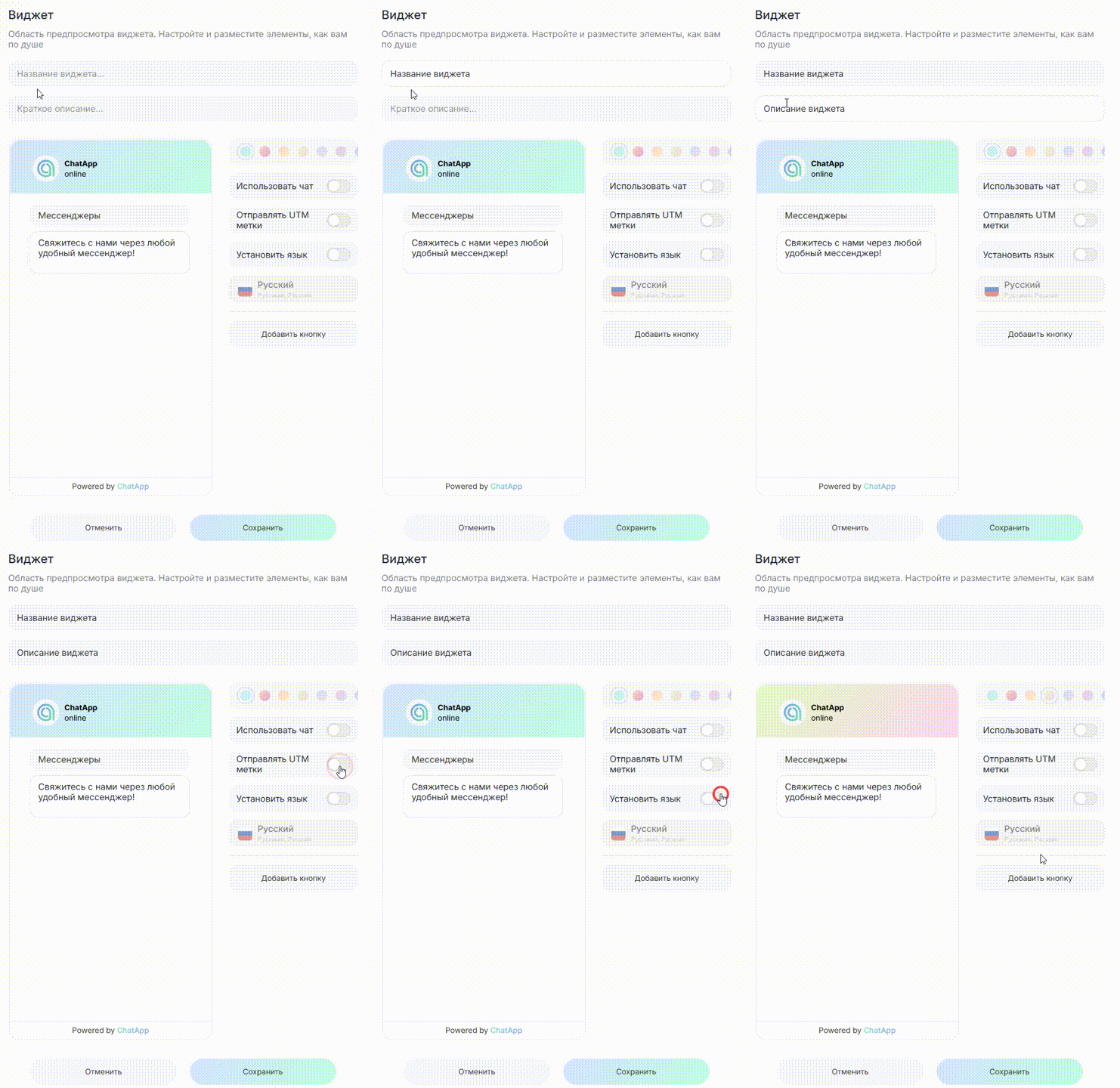
- Нажмите «Добавить кнопку».
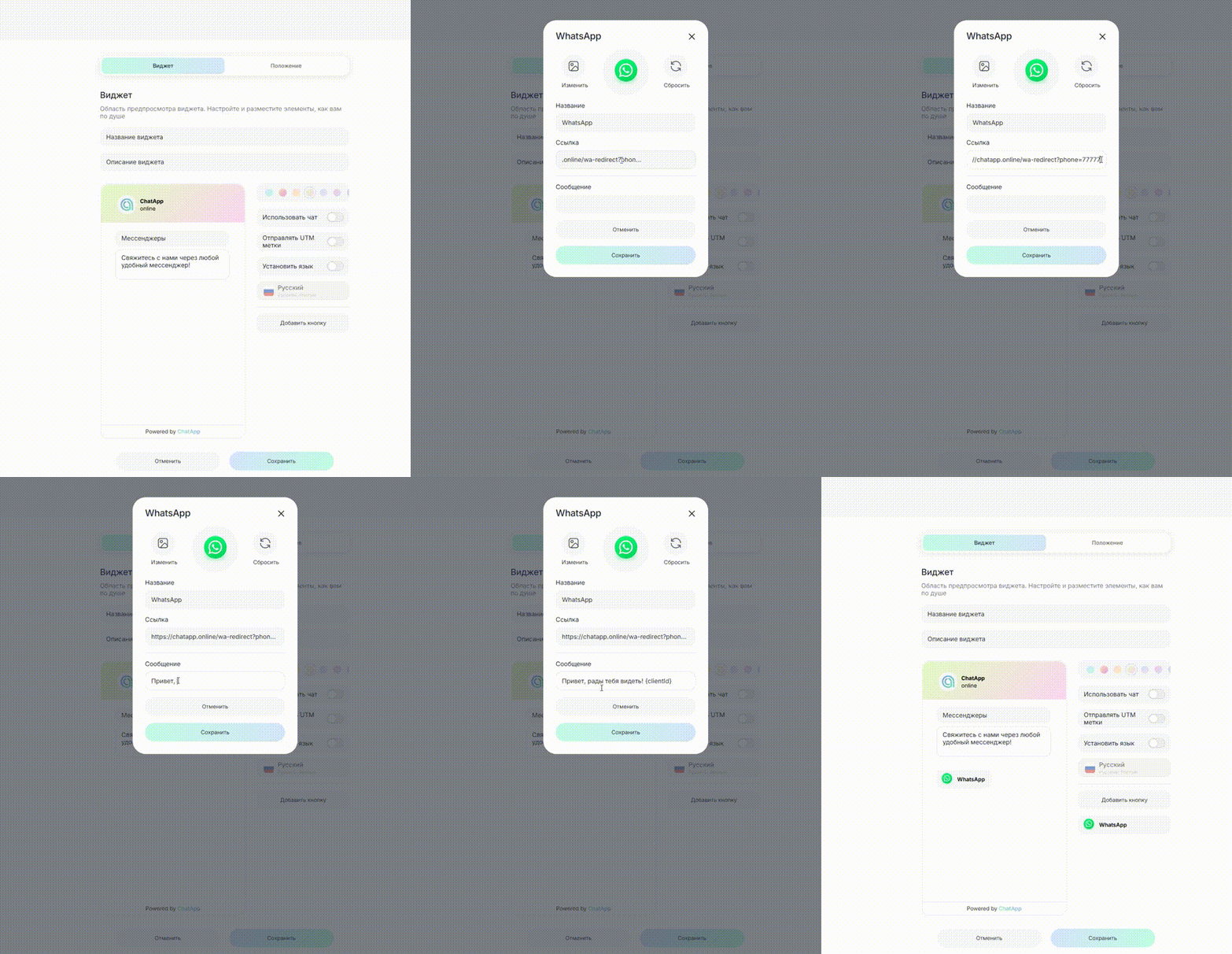
- В открывшемся окне нажмите «Изменить» и выберите канал связи из списка.
- Укажите название кнопки и вставьте ссылку на ресурс.
- Введите текст сообщения, которое будет отправлено при нажатии на иконку мессенджера.
- Нажмите «Сохранить».
После сохранения виджет становится доступен для размещения на сайте.
Ограничения по передаче текста
Предзаполненный текст поддерживается только для следующих каналов:
- WhatsApp WEB;
- официальный WhatsApp;
- Viber Bot.
Передаётся только параметр clientId. Передача текста не поддерживается:
- Telegram Bot;
- MAX Bot
Обратите внимание: в параметре «clientId» используется прописная буква «I», а не строчная «l».
Стандартный формат:
https://wa.me/7XXXXXXXXXX
Корректный формат для виджета:
https://help.chatapp.online/wa-redirect/?phone=7XXXXXXXXXX
где 7XXXXXXXXXX — номер телефона получателя.
После перехода пользователь автоматически открывает диалог в WhatsApp.
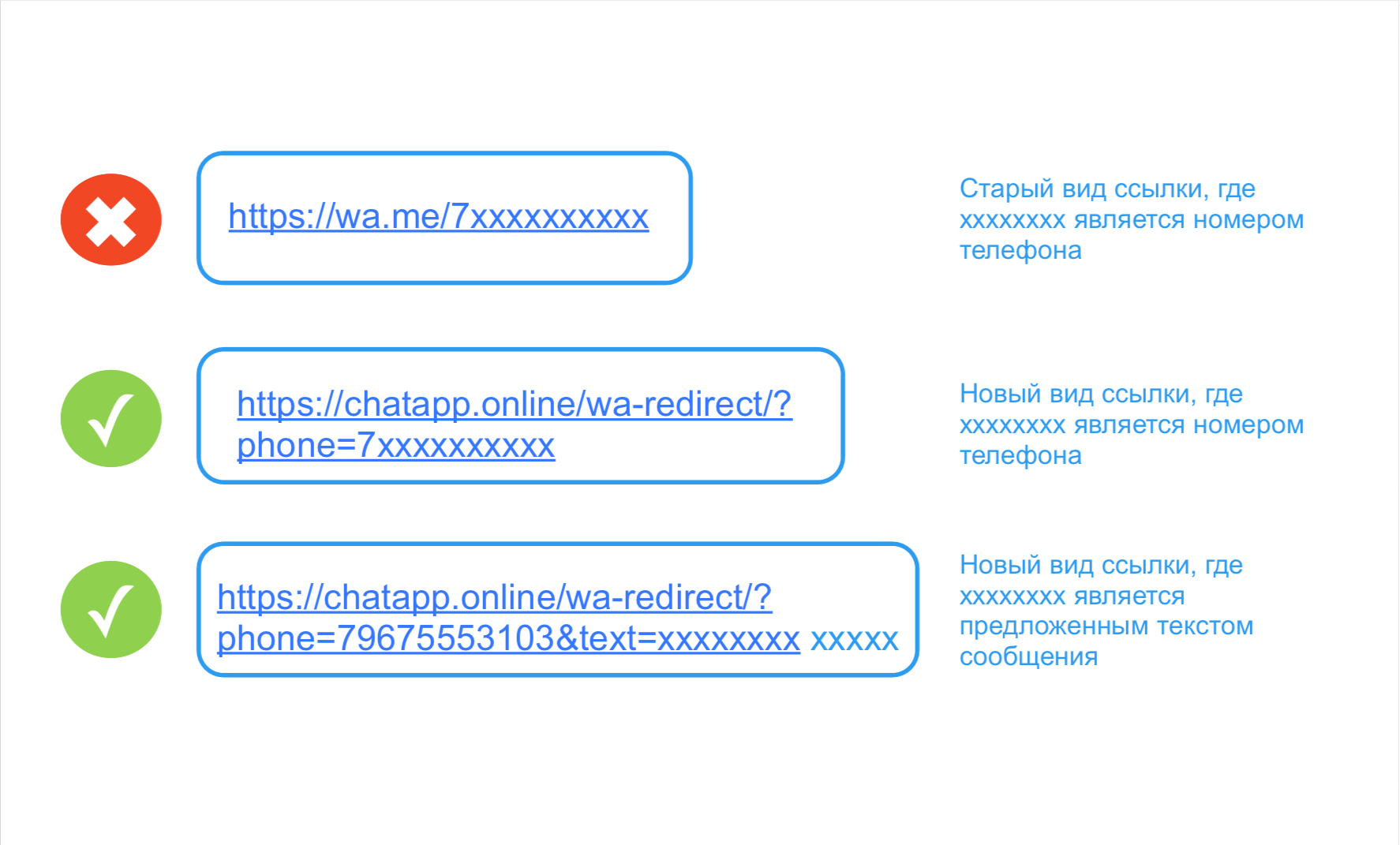
Для передачи текста сообщения используйте формат:
https://help.chatapp.online/wa-redirect/?phone=7XXXXXXXXXX&text=ТекстСообщения
Пример:
https://help.chatapp.online/wa-redirect/?phone=79675553103&text=Добрый день
Допускается использование любого текста и эмодзи.
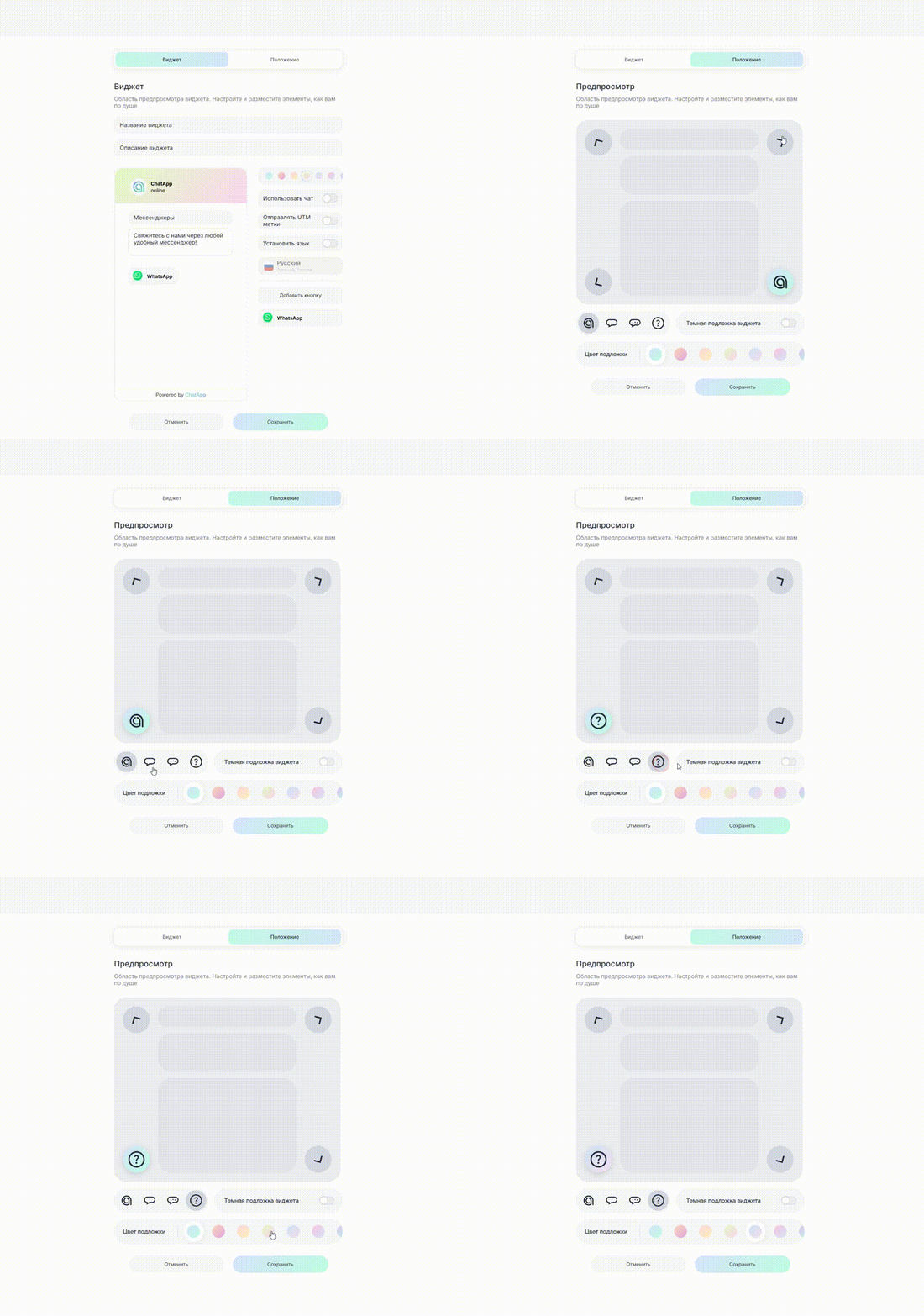
- Откройте страницу создания виджета.
- Нажмите «Положение».
- Выберите место отображения на сайте.
- Нажмите «Сохранить».
- Скопируйте скрипт на странице создания виджета.
- Откройте редактор сайта.
- Выберите страницу для размещения.
- Переключите режим редактирования в HTML.
- Вставьте скрипт перед закрывающим тегом
</body>.
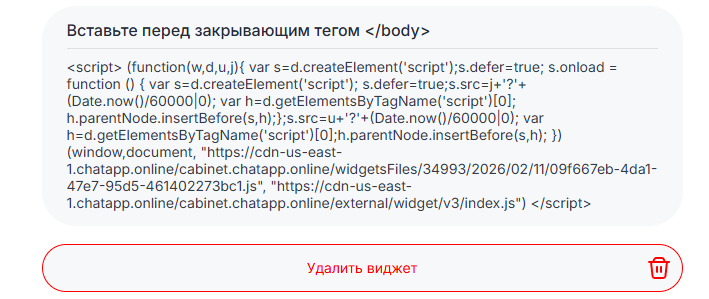
Изменения в настройках виджета применяются автоматически. Обновление на сайте занимает от 5 до 10 минут.
- Откройте HTML-редактор или тестовую страницу сайта.
- Вставьте скрипт виджета.
- Проверьте корректность отображения и переходов по кнопкам.
- Откройте раздел «Автоматизация».
- Выберите подраздел «Метки».
- Выберите установленный виджет.
- Нажмите «Загрузить».
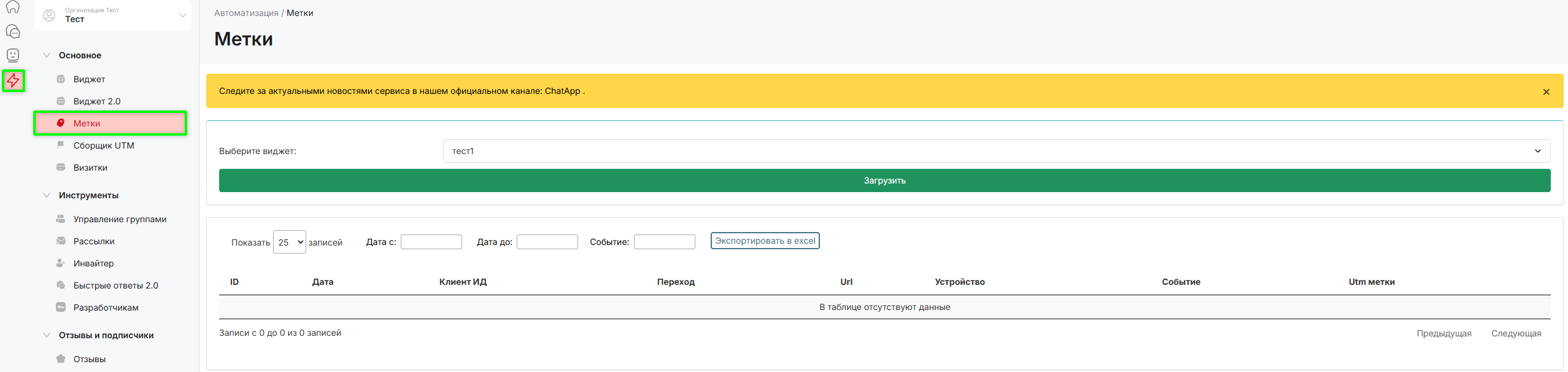
Система отобразит таблицу с собранными UTM-метками.
Дополнительно:
- выгрузите отчёт в формате Excel;
- выберите требуемый период выгрузки.
