Tags in chat rooms
Tags are a way to quickly organize chats.
They help you segment conversations easily, for example: lead, payment, returning customer, etc.
How to create a tag
Before creating a tag, you need to create a tag category.
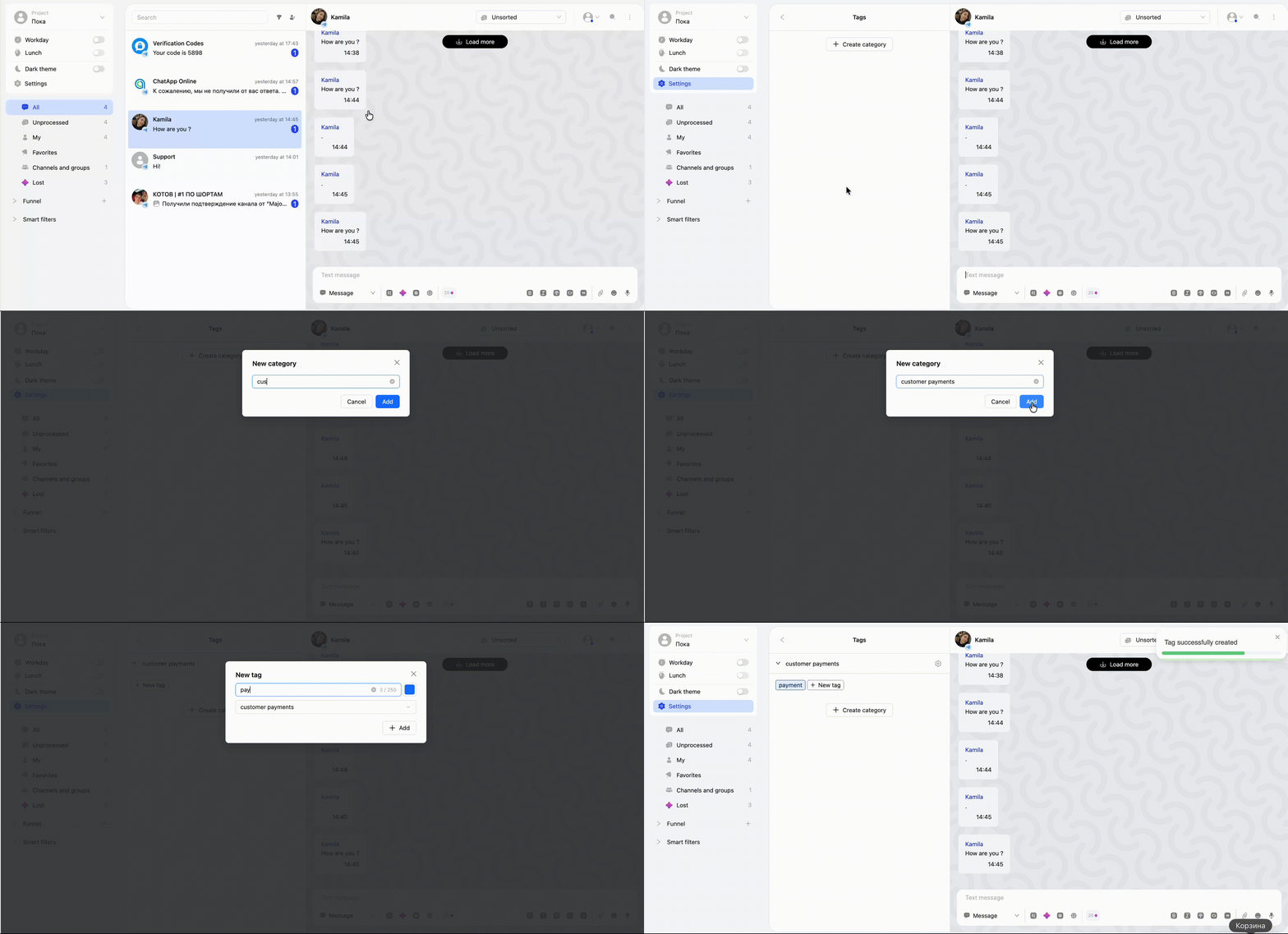
In Scenario Dialogs, go to Settings → Project → Tags.
Step 1. Click “Create category” → enter a name → “Save”
Step 2. Open the category → “Create tag” → specify a name and color → “Add”
You can rename or delete a category via the gear icon next to it.
❗️If you delete a category, all tags inside it will also be deleted.
How to assign a tag to a chat
There are two ways:
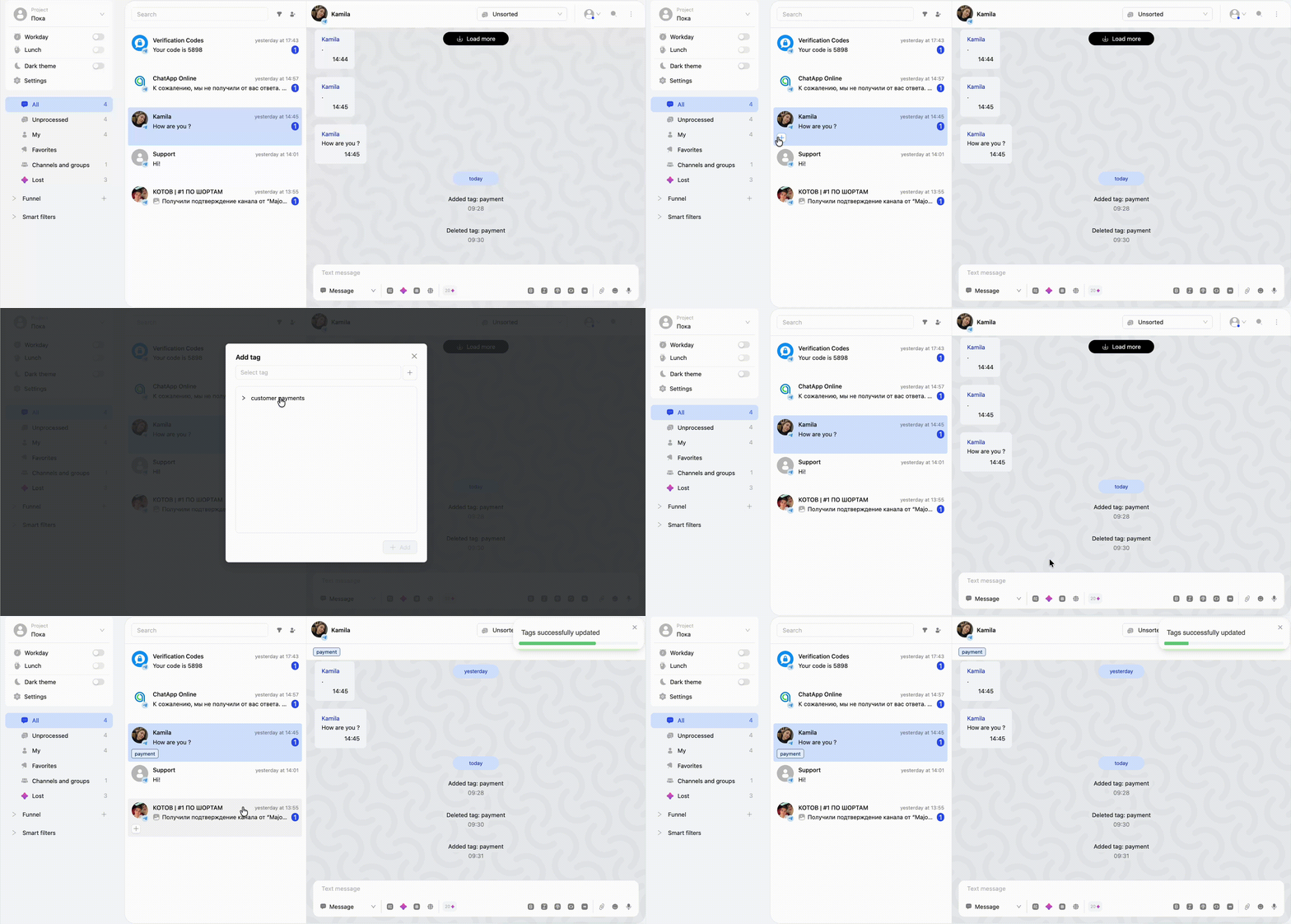
- In the chat list: hover over a chat → click “+” → select a tag
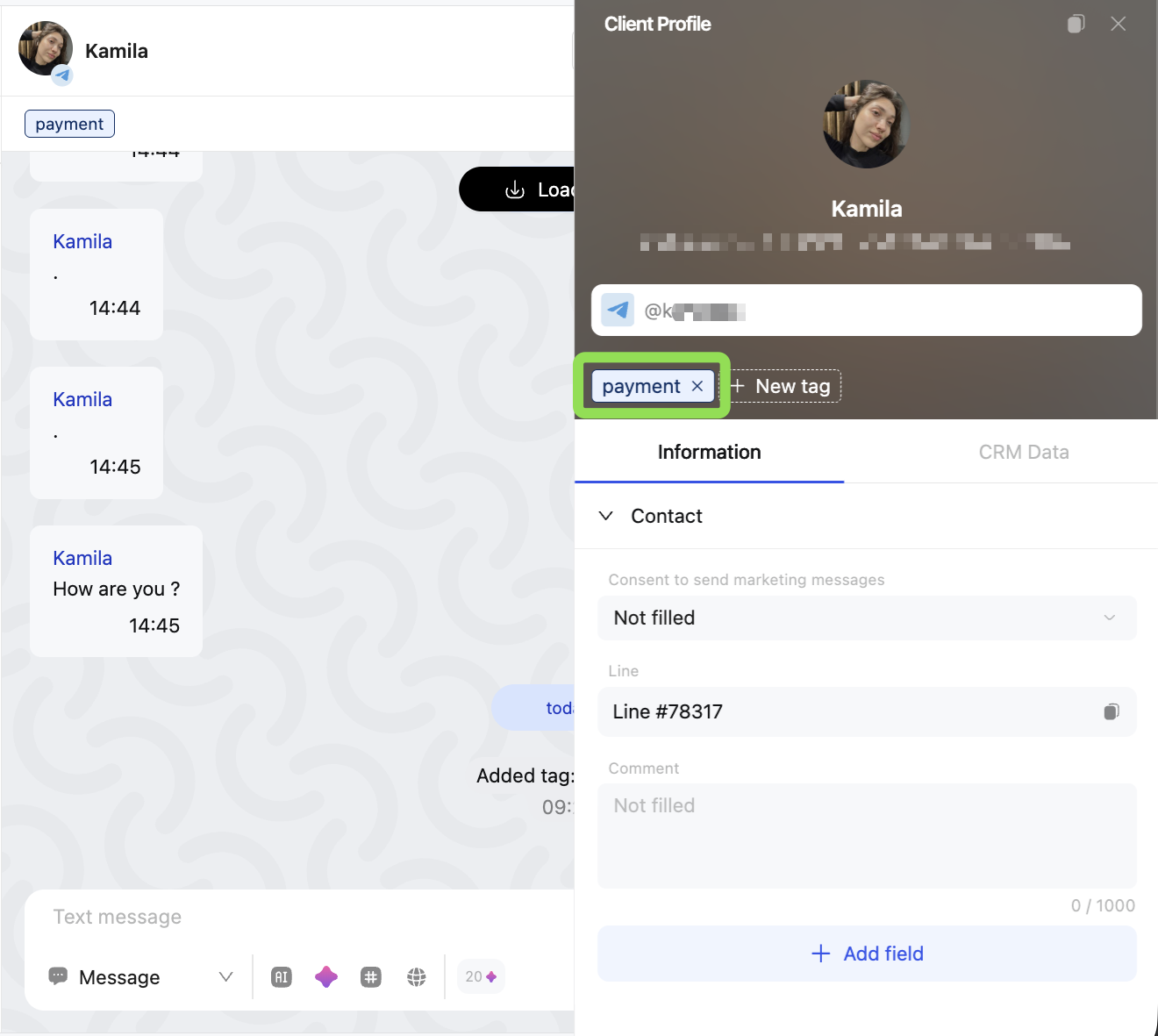
- In the customer profile: click “+ New tag” → select a tag
In both cases, you can choose an existing tag or create a new one within an existing category.
A single conversation can have one or multiple tags.
How to filter conversations by tag
In the chat list, click on a tag — it will show all chats with that tag.
How to remove a tag from a conversation
Open the customer profile → click “×” next to the tag.