Contact support:
    Contact support
    Free Trial Log in
    Select country or language

    How to connect ChatApp

    Connect ChatApp to Bitrix24 in just two steps to start communicating with customers.

    Step 1. Install the ChatApp application on the portal

    Only a Bitrix24 portal administrator can install the application. If the administrator changes or the domain is changed, ChatApp must be reinstalled.

    1. On the Bitrix24 portal, open the “Applications” section in the left menu → “Marketplace”.
    2. In the search bar, enter “ChatApp” → select the application from the list.
    3. Open the application and click “Install”.
    4. Review the terms of use, confirm your agreement → “Install”.
    5. Click “Open application” → “Connect ChatApp”.
      • if you are logged in to the ChatApp personal account — the connection will be completed automatically;
      • if not — log in to your personal account using your password or via a verification code request.

    After connecting the personal account, the section displays:
    — ChatApp personal account ID;
    — the “Disconnect” button — allows you to unlink the personal account from the portal;
    — the “Personal account” button — opens the ChatApp personal account in a new tab.

    Step 2. Configure the connector
    Go to the Contact Center and connect the connector for the channel
    that is connected in your ChatApp personal account:

    Connect the Max connector
    1. Click the “ChatApp — Max” connector → “Connect”.
    2. In the “Account” field, select the line with Max.
      If the line is not found → connect Max in the ChatApp personal account.
    3. Click “Save and connect”. Done — Max has been added. Learn more about additional connector features.
      Learn more about open line settings

    Connect the Max Bot connector
    1. Click the “ChatApp — Max bot” connector → “Connect”.
    2. In the “Account” field, select the line with Max bot.
      If the line is not found → connect Max bot in the ChatApp personal account.
    3. Click “Save and connect”. Done — Max bot has been added. Learn more about additional connector features.
      Learn more about open line settings

    Connect the WhatsApp connector
    1. Click the “ChatApp — WhatsApp (external provider)” connector → “Connect”.
    2. In the “Account” field, select the line with WhatsApp.
      If the line is not found → connect WhatsApp in the ChatApp personal account.
    3. Click “Save and connect”. Done — WhatsApp has been added. Learn more about additional connector features.
      Learn more about open line settings.

    Connect the WhatsApp Cloud API connector
    1. Click the “ChatApp — WACA” connector → “Connect”.
    2. In the “Account” field, select the line with WhatsApp Cloud API.
      If the line is not found → connect WACA in the ChatApp personal account.
    3. Click “Save and connect”. Done — WhatsApp Cloud API has been added. Learn more about additional connector features.
      Learn more about open line settings

    Connect the WhatsApp Business API connector
    1. Click the “ChatApp — WABA” connector → “Connect”.
    2. In the “Account” field, select the line with WhatsApp Business API.
      If the line is not found → connect WABA in the ChatApp personal account.
    3. Click “Save and connect”. Done — WhatsApp Business API has been added. Learn more about additional connector features.
      Learn more about open line settings

    Connect the Telegram connector
    1. Click the “ChatApp — Telegram Personal” connector → “Connect”.
    2. In the “Account” field, select the line with Telegram.
      If the line is not found → connect Telegram in the ChatApp personal account.
    3. Click “Save and connect”. Done — Telegram has been added. Learn more about additional connector features.
      Learn more about open line settings

    Connect the Telegram Bot connector
    1. Click the “ChatApp — Telegram bot” connector → “Connect”.
    2. In the “Account” field, select the line with Telegram bot.
      If the line is not found → connect Telegram bot in the ChatApp personal account.
    3. Click “Save and connect”. Done — Telegram bot has been added. Learn more about additional connector features.
      Learn more about open line settings

    Connect the VKontakte connector
    1. Click the “ChatApp — VKontakte” connector → “Connect”.
    2. In the “Account” field, select the line with the VKontakte channel.
      If the line is not found → connect VKontakte in the ChatApp personal account.
    3. Click “Save and connect”. Done — VKontakte has been added. Learn more about additional connector features.
      Learn more about open line settings

    Connect the Instagram connector
    1. Click the “ChatApp — Instagram*” connector → “Connect”.
    2. In the “Account” field, select the line with the Instagram* channel.
      If the line is not found → connect Instagram* in the ChatApp personal account.
    3. Click “Save and connect”. Done — Instagram* has been added. Learn more about additional connector features.
      Learn more about open line settings
      *Instagram belongs to Meta — an organization recognized as extremist in the Russian Federation.

    Connect the Avito connector
    1. Click the “ChatApp — Avito” connector → “Connect”.
    2. In the “Account” field, select the line with Avito.
      If the line is not found → connect Avito in the ChatApp personal account.
    3. Click “Save and connect”. Done — Avito has been added. Learn more about additional connector features.
      Learn more about open line settings

    Connect the Facebook connector
    1. Click the “ChatApp — Facebook*” connector → “Connect”.
    2. In the “Account” field, select the line with the Facebook* channel.
      If the line is not found → connect Facebook* in the ChatApp personal account.
    3. Click “Save and connect”. Done — Facebook* has been added. Learn more about additional connector features.
      Learn more about open line settings
      *Facebook belongs to Meta — an organization recognized as extremist in the Russian Federation.

    Connect the Email connector
    1. Click the “ChatApp — Email” connector → “Connect”.
    2. In the “Account” field, select the line with Email.
      If the line is not found → connect Email in the ChatApp personal account.
    3. Click “Save and connect”. Done — Email has been added. Learn more about additional connector features.
      Learn more about open line settings

    Connect the Viber Bot connector
    1. Click the “ChatApp — Viber” connector → “Connect”.
    2. In the “Account” field, select the line with Viber Bot.
      If the line is not found → connect Viber Bot in the ChatApp personal account.
    3. Click “Save and connect”. Done — Viber Bot has been added. Learn more about additional connector features.
      Learn more about open line settings

    Connect the VK Notify connector
    1. Click the “ChatApp — VK Notify” connector → “Connect”.
    2. In the “Account” field, select the line with VK Notify.
      If the line is not found → connect VK Notify in the ChatApp personal account.
    3. Click “Save and connect”. Done — VK Notify has been added. Learn more about additional connector features.
      Learn more about open line settings

    After connecting the ChatApp connector in Bitrix24, all incoming messages from the connected channel will be received in Scenario Dialogs and in the Open Line chat.

    To learn how to work with chats in the Bitrix24 Open Line, read the article.

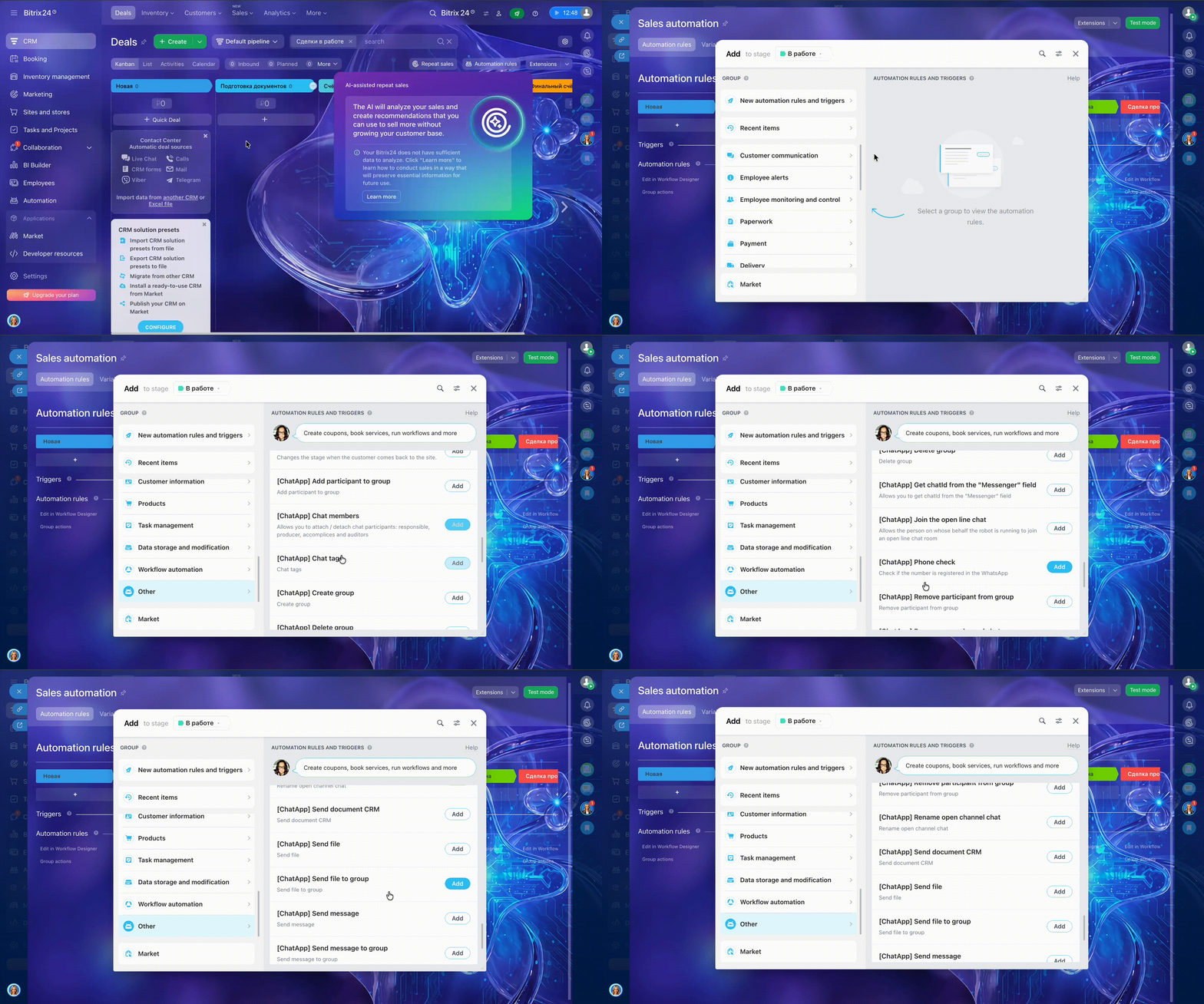
    Set up ChatApp robots to automate routine CRM tasks — learn more in the guide.